Ezeep – How To Print From Any Web Browser to Departmental Printers
TO PRINT FROM ANY WEB BROWSER TO A DEPARTMENTAL PRINTER
After setting up your ezeep account you can log in to the ezeep printer portal from any web browser to send print jobs to the printers you have been granted access to, as well as the Shared College Sharp multi-function printers throughout Nelson Hall.
- Ezeep provides a simple-to-use web portal for all users, accessed on any web browser through this link. (we recommend bookmarking this link for easy access).
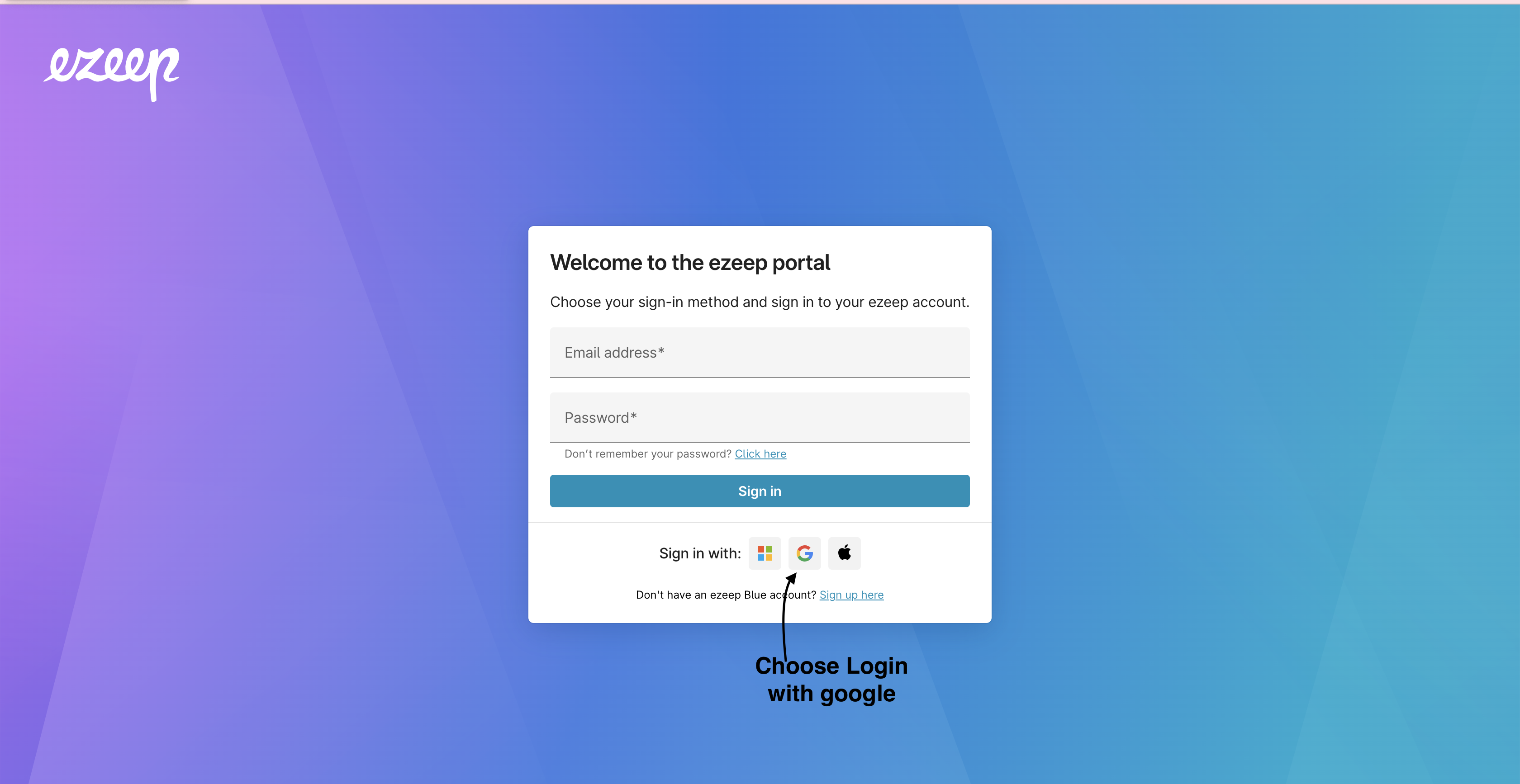
- Open any browser window to https://app.ezeep.com
- Select the Google icon to sign in with your NCSU Google account
- Once you login to your ezeep web portal select the “Printers” option on the left panel:
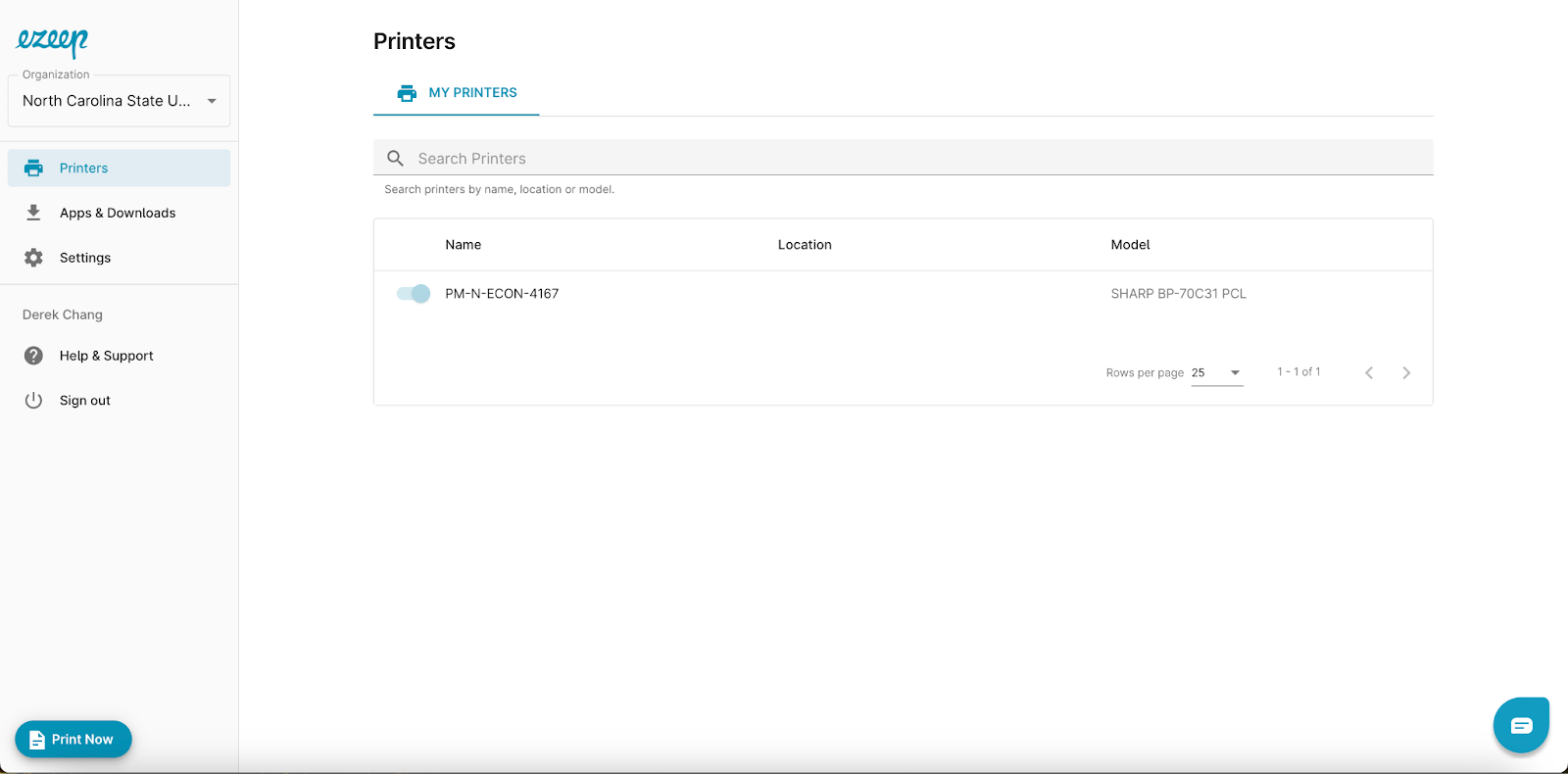
- On the lower left corner, click Print Now to upload files:
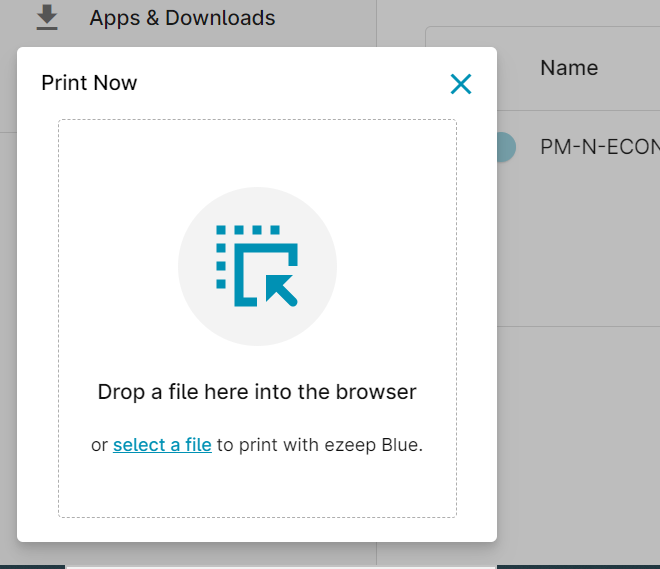
- Drop/select a file to the browser to print:
- Once you upload your file, select the printer “Sharp MFPs” or any other ezeep printer your wish to print to from the drop-down list and click on Print to submit your print job.
- Once you submit your print job, you can go up to your departmental printer, scan the QR code and release your job by following these instructions.